Blogs
- Ping
Introduction
The network program was operated with the program version of Pycharm 2019.3.1 (professional edition)
Algorithm:
- Initiate
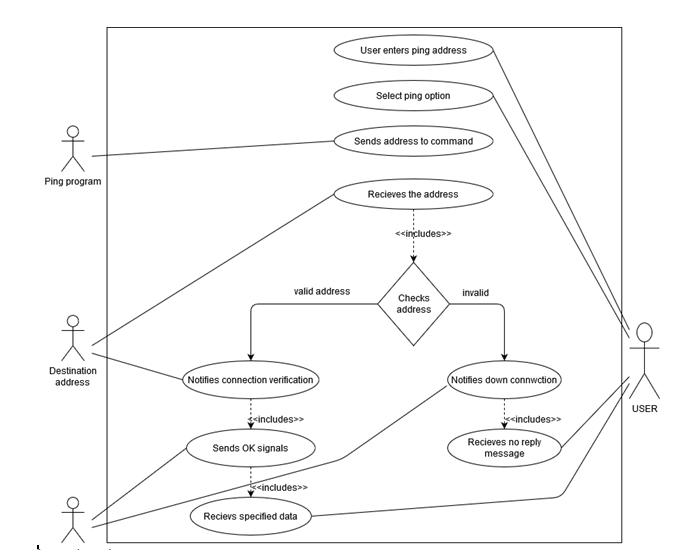
- Network commands test application is opened in a Window.
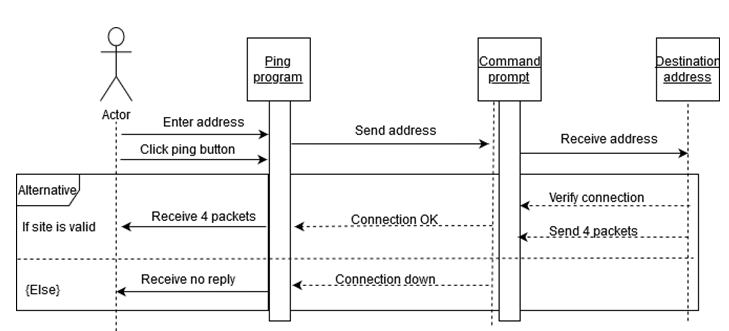
- Go to ping address for entering address and select option
- The command receives address from the program.
- The address is received by destination
- If the site is valid
- Destination sends 4 data packets with verification notification to the command
- OK signal is send by command to ping the program
- After that, the users receives four data packets
- Else
- Down notification is send by the command in the console program
- No reply message is received by actor
- Stop
Use Case Diagram:
Sequence Diagram
TESTING TABLE:
| Test case number | Test case | Input | Result (Expected) | Result (Actual) | Required Screenshot |
| 1. | Application tested after making prototype | 192.168.1.1 –gateway www.youtube.com www.google.com | Ping reply from the destination location. | ICMP message sent to remote location and received reply message without loss |
- Ipconfig/all
Introduction
Pycharm 2019.3.1 was the version of program was used for the program on networking.
Algorithm
- Initiate
- Networking Command Test Application open
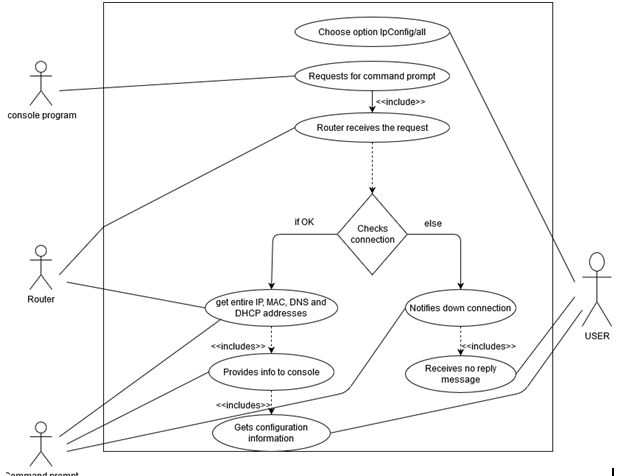
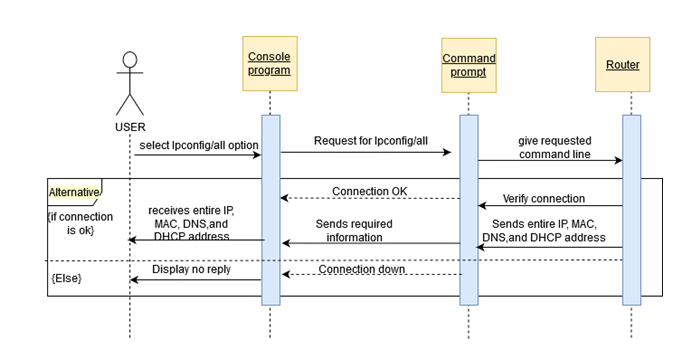
- The option Ipconfig/all is choose
- Console program request for program
- Router receives the request command
- If there is right connection,
- The command prompt receives all the IP addresses like MAC, DNS and DHCP address
- The information is provided by command to console program
- The user view the configuration information displayed by the console
- If not,
- Connection down status notification is send by the command to console
- And no reply message is received by actor
- End
Use case Diagram
Sequence Diagram
TESTING TABLE:
| Test case number | Test case | Input | Result (Expected) | Result (Actual) | Required Screenshot |
| 1. | Command ipconfig /all | Not required | Information about network hardware | Result displaying all the network information as IP, MAC, GATEWAY etc |
- Ipconfig/release
Introduction
Pycharm 2019.3.1 was the version of program was used for the program on networking.
Algorithm
- Initiate
- Networking Command Test Application open
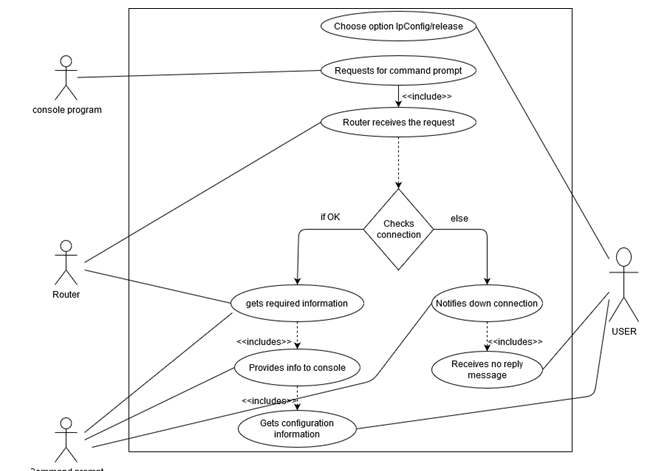
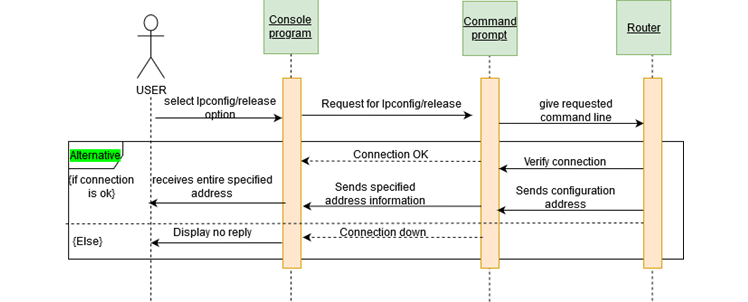
- The option Ipconfig/release is choose
- Console program request for program
- Router receives the request command
- If there is right connection,
- Router send transmit information to the command prompt
- The information is acknowledged by command prompt related with the request
- Command prompt gives information to command prompt and at the end to the user
- If not,
- Connection down status notification is send by the command to console
- And no reply message is received by actor
- End
Use case Diagram
Sequence Diagram
TESTING TABLE:
| Test case number | Test case | Input | Result (Expected) | Result (Actual) | Required Screenshot |
| 1. | Command ipconfig /release | Not required | Release the current IP address received from DHCP server | Erase current IP address |
- Ipconfig/renew
Introduction
Pycharm 2019.3.1 was the version of program was used for the program on networking.
Algorithm
- Initiate
- Networking Command Test Application opens
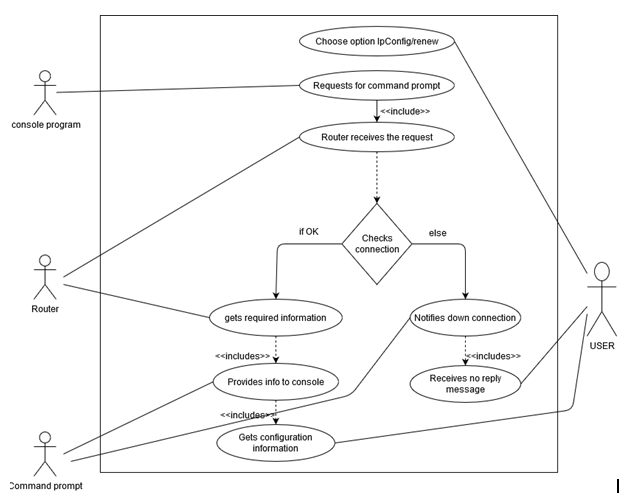
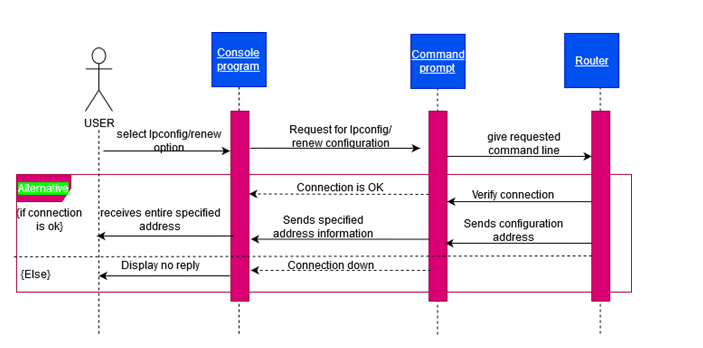
- The option Ipconfig/renew is choose
- Console program request for program
- Router receives the request command
- If there is right connection,
- Router send transmit information to the command prompt
- The information is acknowledged by command prompt related with the request
- Command prompt gives information to command prompt and at the end to the user
- If not,
- Connection down status notification is send by the command prompt to console
- And no reply message is received by actor
- End
Use case Diagram
Sequence Diagram
TESTING TABLE:
| Test case number | Test case | Input | Result (Expected) | Result (Actual) | Required Screenshot |
| 1. | Command ipconfig /renew | Not required | Request new IP address from DHCP server | Full DHCP “DORA” is performed by PC to get new IP address |
- Tracert
Introduction
Pycharm 2019.3.1 was the version of program was used for the program on networking.
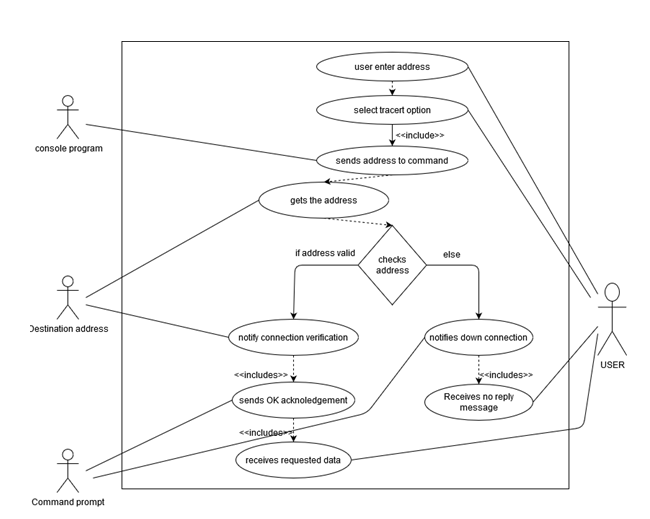
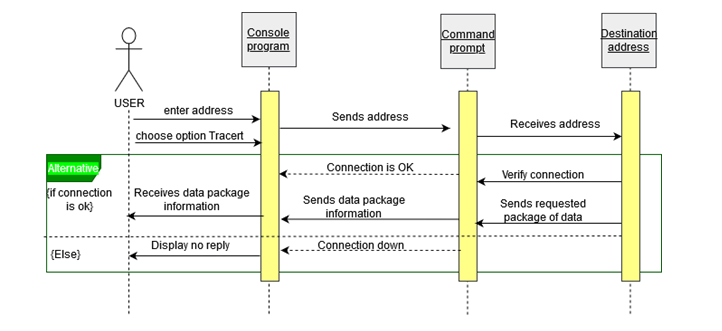
Algorithm
- Start
- Networking Command Test Application opens
- Enter address to enter address prompt
- Choose the option Tracert, which is in option 5
- Console program send addresses to the command
- Addresses is received by the destination
- For the valid site,
- Destination sends specific data packets with connection as verified with notification to command
- OK signal is send by command to program
- User receives the data packets
- Else,
- Connection down status notification is send by the command prompt to console
- And no reply message is received by the actor
- End
Use case Diagram
Sequence Diagram
TESTING TABLE:
| Test case number | Test case | Input | Result (Expected) | Result (Actual) | Required Screenshot |
| 1. | Command tracert | www.google.com 192.168.1.1 | Path to reach the input address | Within the maximum distance of 30 hops path to reach the network address is displayed. |
- NetStat
Introduction
Pycharm 2019.3.1 was the version of program was used for the program on networking.
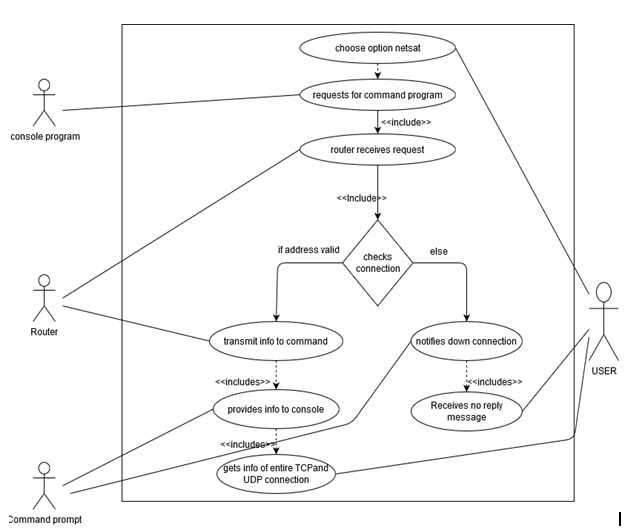
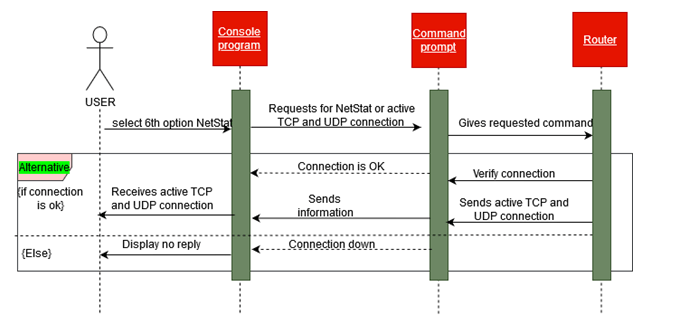
Algorithm
- Start
- Networking Command Test Application opens
- Enter address to enter address prompt
- Choose the option NetStat, which is in option 6
- Console program send addresses to the command
- Request command is received by router
- For the right connection,
- Router send transmit information to the command prompt
- The information is acknowledged by command prompt related with the request
- Command prompt gives information of all active TCP as well as UDP to console and at the end to the user
- Else
- Connection down status notification is send by the command prompt to console
- And no reply message is received by the actor
- End
Use case Diagram
Sequence Diagram
TESTING TABLE:
| Test case number | Test case | Input | Result (Expected) | Result (Actual) | Required Screenshot |
| 1. | Command netstat -an | Not required | List of TCP and UDP connections | All the connection from and to the PC is displayed along with their IP and port number |
- Pathping
Introduction
Pycharm 2019.3.1 was the version of program was used for the program on networking.
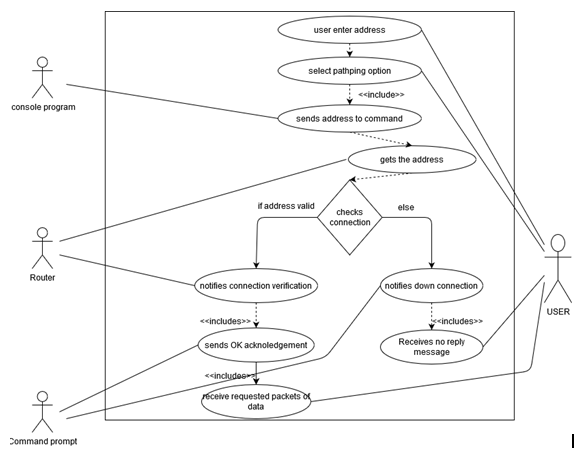
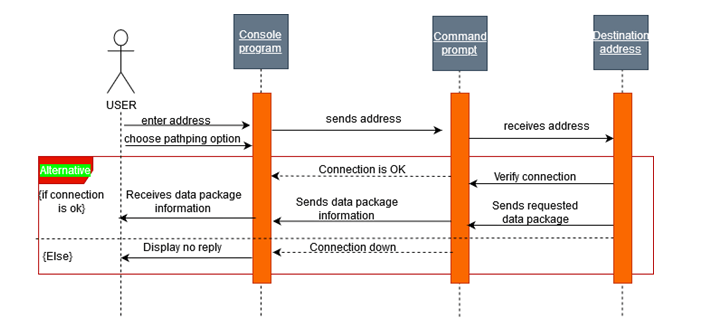
Algorithm
- Start
- Networking Command Test Application opens
- Enter address to enter address prompt
- Choose the option PathPing, which is in option 7
- Console program send addresses to the command
- Addresses is received by the destination
- For the valid site,
- Destination sends specific data packets with connection as verified with notification to command
- OK signal is send by command to program
- User receives the data packets
- Else,
- Connection down status notification is send by the command prompt to console
- And no reply message is received by the actor
- End
Use case Diagram
Sequence Diagram
TESTING TABLE:
| Test case number | Test case | Input | Result (Expected) | Result (Actual) | Required Screenshot |
| 1. | Command pathping | www.google.com 192.168.1.1 | Entire path is pinged to test for live connections | Statics of IP address and ping result is displayed |
Modules required for making GUI application
import os
import tkinter as tk
Class definition
class Network_Application(tk.Frame):
# Init method for Class

def __init__(self, masterRoot=None):

    super().__init__(masterRoot)


    # defining various class settings

    self.main = masterRoot

    self.main.geometry("450x320")

    self.winfo_toplevel().title("*** Run Network Commands ***")

    self.add_UI_Components()

    self.pack()


# function to add UI componets to root window

def add_UI_Components(self):


    self.layer1 = tk.Frame(self)  # initalizing a frame within a window

    self.layer2blue=tk.Frame(self,pady=10)

    self.layer2gr=tk.Frame(self)

    self.layer3=tk.Frame(self,pady=50)

    self.layer1.pack()

    self.layer2blue.pack()

    self.layer2gr.pack()

    self.layer3.pack(side="bottom")


    self.valueLabel = tk.Label(self.layer1,text="Input Value :=>> ") # initalizing Label to display text


    self.inputTextbox = tk.Entry(self.layer1)  # initalizing textbox

    self.inputTextbox.focus() # moving cusor


    self.valueLabel.grid(row=0,column=0,padx=0)  # defining grid layout for Components placement

    self.inputTextbox.grid(row=0,column=1,padx=30)


    self.req1 = tk.Label(self.layer1,text="Blue Commands require input")


    self.req1.grid(row=1,column=0,pady=10)


    # initalizing input requiring command

    self.btn_ping = tk.Button(self.layer2blue, text="ping", command=self.cmd_ping,bg="blue")

    self.btn_tracert = tk.Button(self.layer2blue, text="tracert", command=self.cmd_tracert,bg="blue")

    self.btn_pathping = tk.Button(self.layer2blue, text="pathping", command=self.cmd_pathping,bg="blue")


    # binding components to the frame by packing them in

    self.btn_ping.pack(side="left",padx=5,pady=5)

    self.btn_tracert.pack(side="left",padx=5,pady=5)

    self.btn_pathping.pack(side="left",padx=5,pady=5)


    self.req2 = tk.Label(self.layer1,text="Green Commands don't require input")


    self.req2.grid(row=2,column=0,pady=10)


    # initalizing input not requiring commands

    self.btn_ipconfig = tk.Button(self.layer2gr, text="ipconfig /all", command=self.cmd_ipconfig_all,bg="green")

    self.btn_ipconfig_release = tk.Button(self.layer2gr, text="ipconfig /release", command=self.cmd_ipconfig_release,bg="green")

    self.btn_ipconfig_renew = tk.Button(self.layer2gr, text="ipconfig /renew", command=self.cmd_ipconfig_renew,bg="green")

    self.btn_netstat = tk.Button(self.layer2gr, text="netstat -an", command=self.cmd_netstat,bg="green")


    self.btn_ipconfig.pack(side="left",padx=5)

    self.btn_ipconfig_release.pack(side="left",padx=5)

    self.btn_ipconfig_renew.pack(side="left",padx=5)

    self.btn_netstat.pack(side="left",padx=5)


    # defining Exit button for the application

    self.exit = tk.Button(self.layer3, text="Exit Application", bg='red', command=self.main.destroy)

    self.exit.pack(side="bottom",padx=10)
# function defination for all the network commands
def cmd_ping(self):


    value=self.inputTextbox.get()


    run_cmd = os.system('ping '+value)

    if run_cmd == 0:

        print("Ping Command Success")

    else:

        print("Ping Command Failure")


    self.inputTextbox.delete(0,'end')  # to clear out the text box after command is executed


def cmd_tracert(self):

    value=self.inputTextbox.get()

    run_cmd = os.system("tracert "+value)

    self.inputTextbox.delete(0,'end')


def cmd_pathping(self):

    value=self.inputTextbox.get()

    run_cmd = os.system("pathping "+value)

    self.inputTextbox.delete(0,'end')


def cmd_ipconfig_all(self):

    run_cmd = os.system("ipconfig /all")


def cmd_ipconfig_release(self):

    run_cmd = os.system("ipconfig /release")


def cmd_ipconfig_renew(self):

    run_cmd = os.system("ipconfig /renew")


def cmd_netstat(self):

    run_cmd = os.system("netstat -an")
root window instance creation
root = tk.Tk()
Network_Application class Instace creation
app = Network_Application(masterRoot=root)
Running the instance object in infinite loop
app.mainloop()
 Research project