Blogs
- Ping
Introduction
The network program was operated with the program version of Pycharm 2019.3.1 (professional edition)
Algorithm:
- Initiate
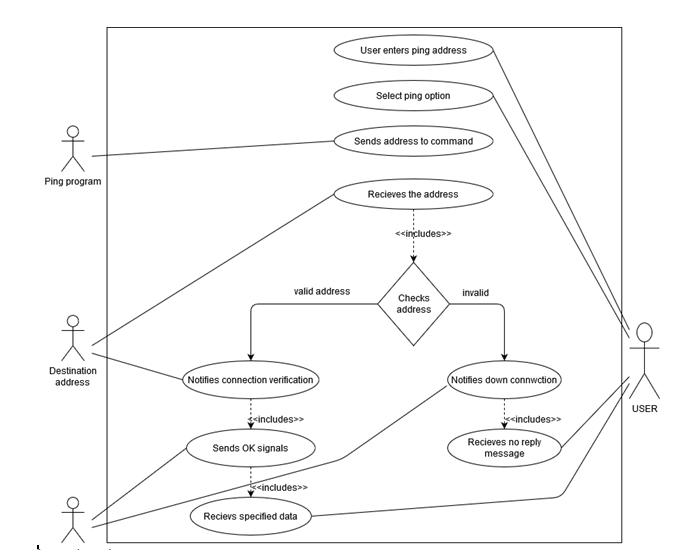
- Network commands test application is opened in a Window.
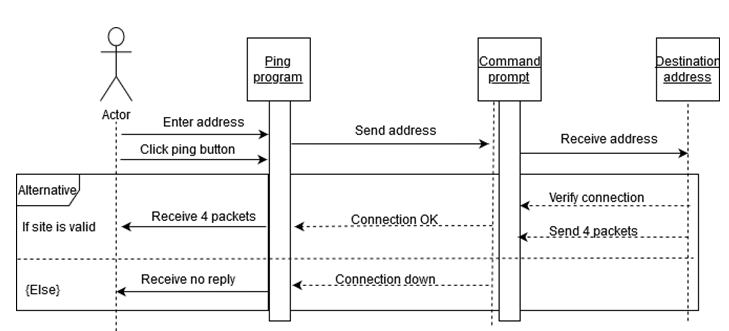
- Go to ping address for entering address and select option
- The command receives address from the program.
- The address is received by destination
- If the site is valid
- Destination sends 4 data packets with verification notification to the command
- OK signal is send by command to ping the program
- After that, the users receives four data packets
- Else
- Down notification is send by the command in the console program
- No reply message is received by actor
- Stop
Use Case Diagram:
Sequence Diagram
TESTING TABLE:
| Test case number | Test case | Input | Result (Expected) | Result (Actual) | Required Screenshot |
| 1. | Application tested after making prototype | 192.168.1.1 –gateway www.youtube.com www.google.com | Ping reply from the destination location. | ICMP message sent to remote location and received reply message without loss |
- Ipconfig/all
Introduction
Pycharm 2019.3.1 was the version of program was used for the program on networking.
Algorithm
- Initiate
- Networking Command Test Application open
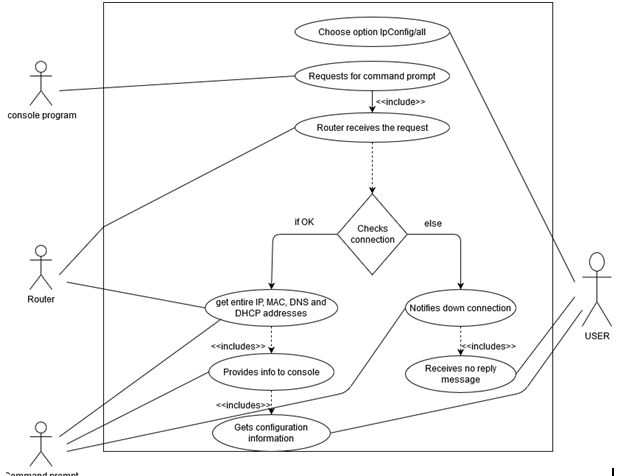
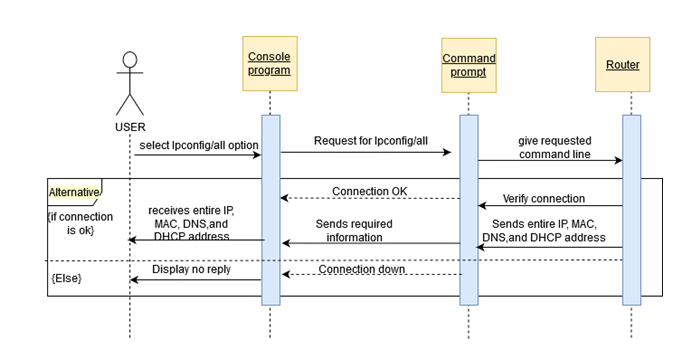
- The option Ipconfig/all is choose
- Console program request for program
- Router receives the request command
- If there is right connection,
- The command prompt receives all the IP addresses like MAC, DNS and DHCP address
- The information is provided by command to console program
- The user view the configuration information displayed by the console
- If not,
- Connection down status notification is send by the command to console
- And no reply message is received by actor
- End
Use case Diagram
Sequence Diagram
TESTING TABLE:
| Test case number | Test case | Input | Result (Expected) | Result (Actual) | Required Screenshot |
| 1. | Command ipconfig /all | Not required | Information about network hardware | Result displaying all the network information as IP, MAC, GATEWAY etc |
- Ipconfig/release
Introduction
Pycharm 2019.3.1 was the version of program was used for the program on networking.
Algorithm
- Initiate
- Networking Command Test Application open
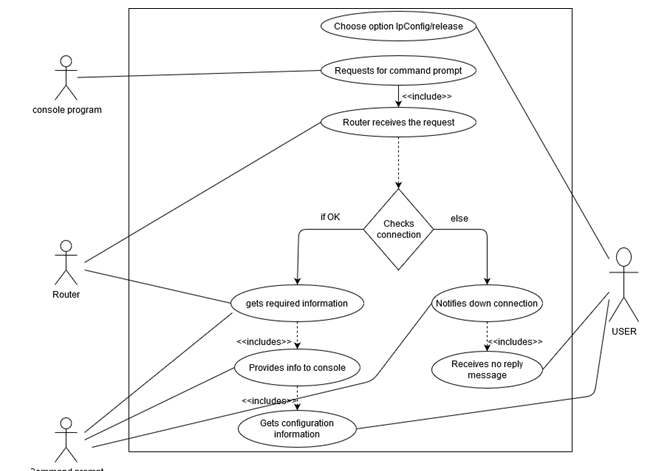
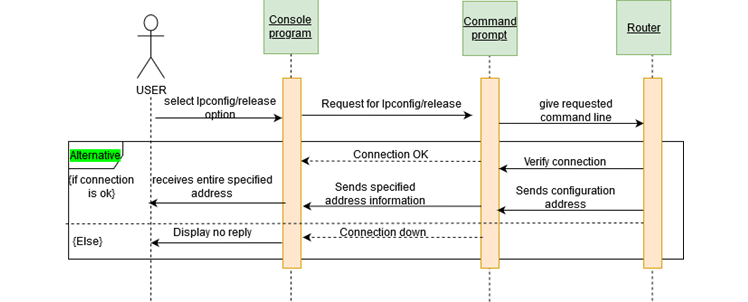
- The option Ipconfig/release is choose
- Console program request for program
- Router receives the request command
- If there is right connection,
- Router send transmit information to the command prompt
- The information is acknowledged by command prompt related with the request
- Command prompt gives information to command prompt and at the end to the user
- If not,
- Connection down status notification is send by the command to console
- And no reply message is received by actor
- End
Use case Diagram
Sequence Diagram
TESTING TABLE:
| Test case number | Test case | Input | Result (Expected) | Result (Actual) | Required Screenshot |
| 1. | Command ipconfig /release | Not required | Release the current IP address received from DHCP server | Erase current IP address |
- Ipconfig/renew
Introduction
Pycharm 2019.3.1 was the version of program was used for the program on networking.
Algorithm
- Initiate
- Networking Command Test Application opens
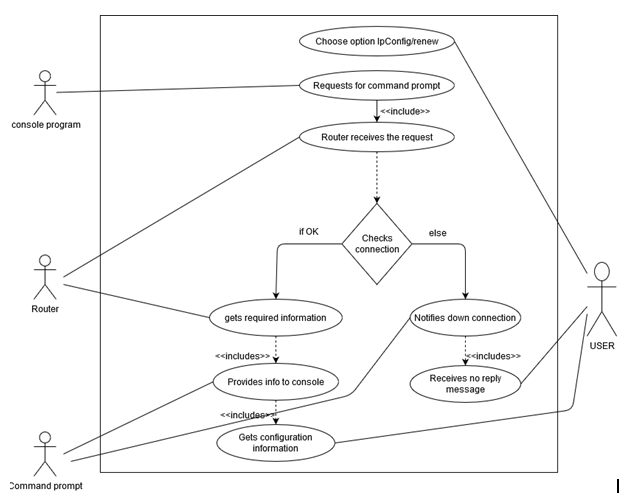
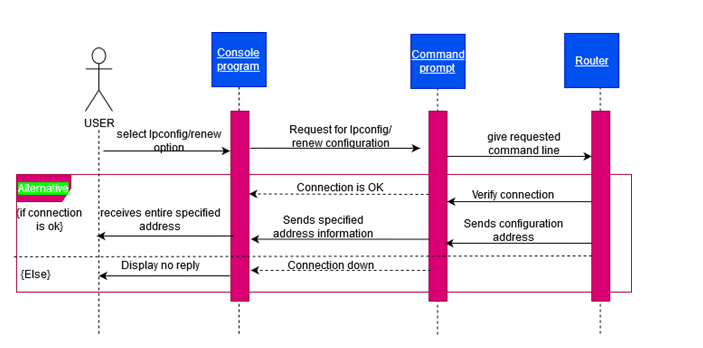
- The option Ipconfig/renew is choose
- Console program request for program
- Router receives the request command
- If there is right connection,
- Router send transmit information to the command prompt
- The information is acknowledged by command prompt related with the request
- Command prompt gives information to command prompt and at the end to the user
- If not,
- Connection down status notification is send by the command prompt to console
- And no reply message is received by actor
- End
Use case Diagram
Sequence Diagram
TESTING TABLE:
| Test case number | Test case | Input | Result (Expected) | Result (Actual) | Required Screenshot |
| 1. | Command ipconfig /renew | Not required | Request new IP address from DHCP server | Full DHCP “DORA” is performed by PC to get new IP address |
- Tracert
Introduction
Pycharm 2019.3.1 was the version of program was used for the program on networking.
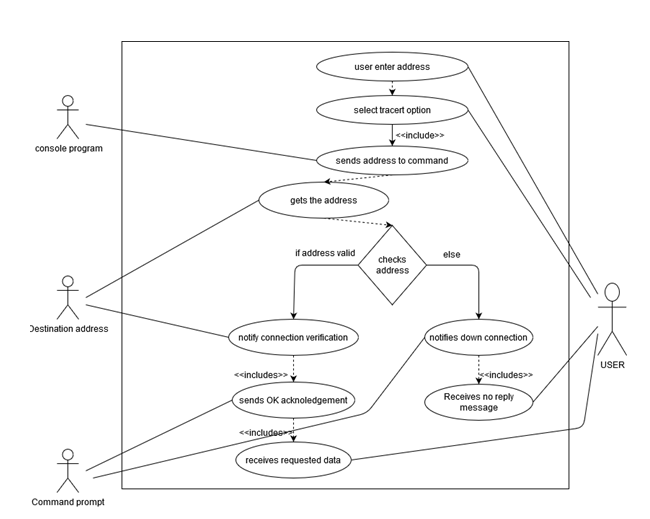
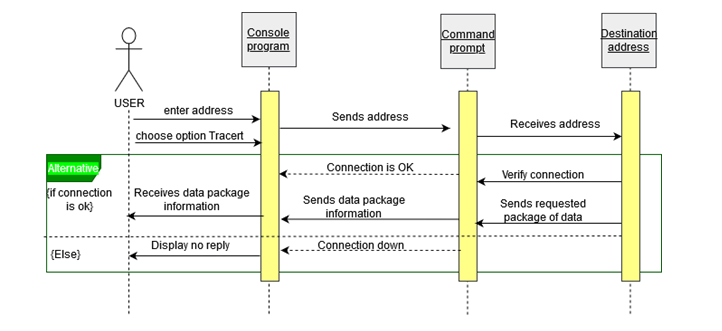
Algorithm
- Start
- Networking Command Test Application opens
- Enter address to enter address prompt
- Choose the option Tracert, which is in option 5
- Console program send addresses to the command
- Addresses is received by the destination
- For the valid site,
- Destination sends specific data packets with connection as verified with notification to command
- OK signal is send by command to program
- User receives the data packets
- Else,
- Connection down status notification is send by the command prompt to console
- And no reply message is received by the actor
- End
Use case Diagram
Sequence Diagram
TESTING TABLE:
| Test case number | Test case | Input | Result (Expected) | Result (Actual) | Required Screenshot |
| 1. | Command tracert | www.google.com 192.168.1.1 | Path to reach the input address | Within the maximum distance of 30 hops path to reach the network address is displayed. |
- NetStat
Introduction
Pycharm 2019.3.1 was the version of program was used for the program on networking.
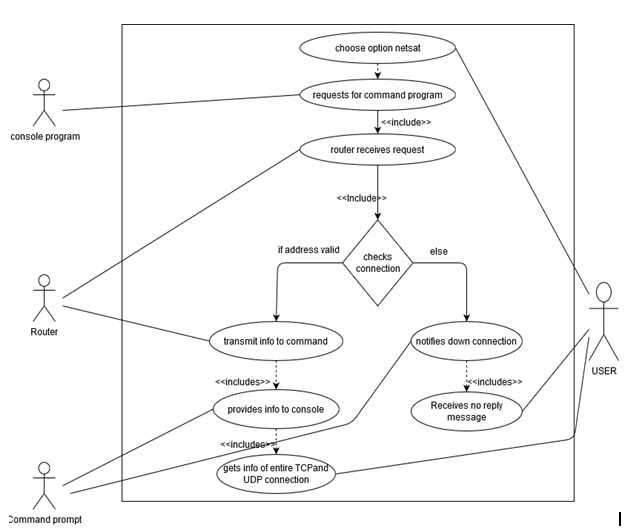
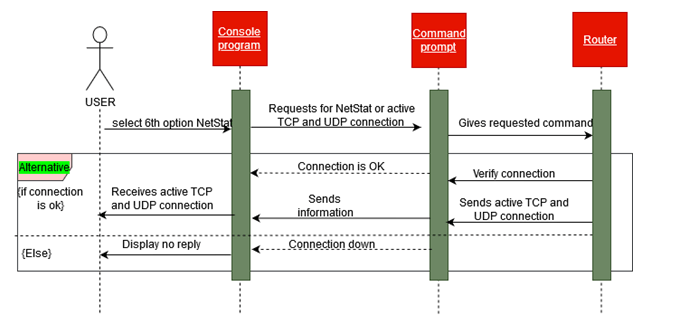
Algorithm
- Start
- Networking Command Test Application opens
- Enter address to enter address prompt
- Choose the option NetStat, which is in option 6
- Console program send addresses to the command
- Request command is received by router
- For the right connection,
- Router send transmit information to the command prompt
- The information is acknowledged by command prompt related with the request
- Command prompt gives information of all active TCP as well as UDP to console and at the end to the user
- Else
- Connection down status notification is send by the command prompt to console
- And no reply message is received by the actor
- End
Use case Diagram
Sequence Diagram
TESTING TABLE:
| Test case number | Test case | Input | Result (Expected) | Result (Actual) | Required Screenshot |
| 1. | Command netstat -an | Not required | List of TCP and UDP connections | All the connection from and to the PC is displayed along with their IP and port number |
- Pathping
Introduction
Pycharm 2019.3.1 was the version of program was used for the program on networking.
Algorithm
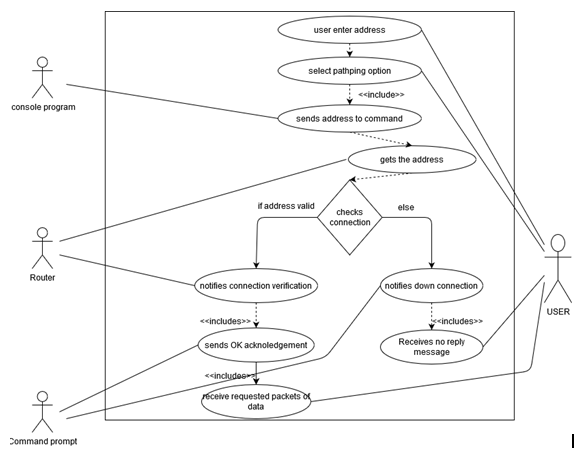
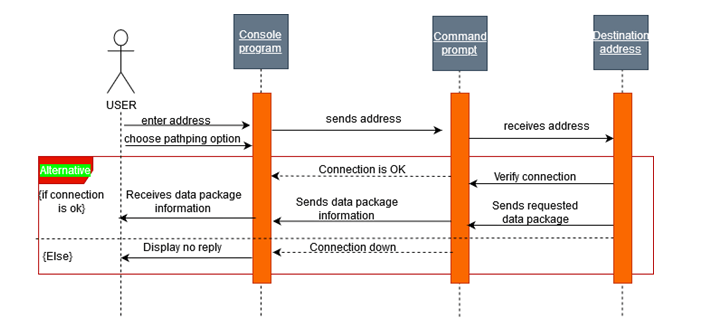
- Start
- Networking Command Test Application opens
- Enter address to enter address prompt
- Choose the option PathPing, which is in option 7
- Console program send addresses to the command
- Addresses is received by the destination
- For the valid site,
- Destination sends specific data packets with connection as verified with notification to command
- OK signal is send by command to program
- User receives the data packets
- Else,
- Connection down status notification is send by the command prompt to console
- And no reply message is received by the actor
- End
Use case Diagram
Sequence Diagram
TESTING TABLE:
| Test case number | Test case | Input | Result (Expected) | Result (Actual) | Required Screenshot |
| 1. | Command pathping | www.google.com 192.168.1.1 | Entire path is pinged to test for live connections | Statics of IP address and ping result is displayed |
Modules required for making GUI application
import os
import tkinter as tk
Class definition
class Network_Application(tk.Frame):
# Init method for Class

def __init__(self, masterRoot=None):

    super().__init__(masterRoot)


    # defining various class settings

    self.main = masterRoot

    self.main.geometry("450x320")

    self.winfo_toplevel().title("*** Run Network Commands ***")

    self.add_UI_Components()

    self.pack()


# function to add UI componets to root window

def add_UI_Components(self):


    self.layer1 = tk.Frame(self)  # initalizing a frame within a window

    self.layer2blue=tk.Frame(self,pady=10)

    self.layer2gr=tk.Frame(self)

    self.layer3=tk.Frame(self,pady=50)

    self.layer1.pack()

    self.layer2blue.pack()

    self.layer2gr.pack()

    self.layer3.pack(side="bottom")


    self.valueLabel = tk.Label(self.layer1,text="Input Value :=>> ") # initalizing Label to display text


    self.inputTextbox = tk.Entry(self.layer1)  # initalizing textbox

    self.inputTextbox.focus() # moving cusor


    self.valueLabel.grid(row=0,column=0,padx=0)  # defining grid layout for Components placement

    self.inputTextbox.grid(row=0,column=1,padx=30)


    self.req1 = tk.Label(self.layer1,text="Blue Commands require input")


    self.req1.grid(row=1,column=0,pady=10)


    # initalizing input requiring command

    self.btn_ping = tk.Button(self.layer2blue, text="ping", command=self.cmd_ping,bg="blue")

    self.btn_tracert = tk.Button(self.layer2blue, text="tracert", command=self.cmd_tracert,bg="blue")

    self.btn_pathping = tk.Button(self.layer2blue, text="pathping", command=self.cmd_pathping,bg="blue")


    # binding components to the frame by packing them in

    self.btn_ping.pack(side="left",padx=5,pady=5)

    self.btn_tracert.pack(side="left",padx=5,pady=5)

    self.btn_pathping.pack(side="left",padx=5,pady=5)


    self.req2 = tk.Label(self.layer1,text="Green Commands don't require input")


    self.req2.grid(row=2,column=0,pady=10)


    # initalizing input not requiring commands

    self.btn_ipconfig = tk.Button(self.layer2gr, text="ipconfig /all", command=self.cmd_ipconfig_all,bg="green")

    self.btn_ipconfig_release = tk.Button(self.layer2gr, text="ipconfig /release", command=self.cmd_ipconfig_release,bg="green")

    self.btn_ipconfig_renew = tk.Button(self.layer2gr, text="ipconfig /renew", command=self.cmd_ipconfig_renew,bg="green")

    self.btn_netstat = tk.Button(self.layer2gr, text="netstat -an", command=self.cmd_netstat,bg="green")


    self.btn_ipconfig.pack(side="left",padx=5)

    self.btn_ipconfig_release.pack(side="left",padx=5)

    self.btn_ipconfig_renew.pack(side="left",padx=5)

    self.btn_netstat.pack(side="left",padx=5)


    # defining Exit button for the application

    self.exit = tk.Button(self.layer3, text="Exit Application", bg='red', command=self.main.destroy)

    self.exit.pack(side="bottom",padx=10)
# function defination for all the network commands
def cmd_ping(self):


    value=self.inputTextbox.get()


    run_cmd = os.system('ping '+value)

    if run_cmd == 0:

        print("Ping Command Success")

    else:

        print("Ping Command Failure")


    self.inputTextbox.delete(0,'end')  # to clear out the text box after command is executed


def cmd_tracert(self):

    value=self.inputTextbox.get()

    run_cmd = os.system("tracert "+value)

    self.inputTextbox.delete(0,'end')


def cmd_pathping(self):

    value=self.inputTextbox.get()

    run_cmd = os.system("pathping "+value)

    self.inputTextbox.delete(0,'end')


def cmd_ipconfig_all(self):

    run_cmd = os.system("ipconfig /all")


def cmd_ipconfig_release(self):

    run_cmd = os.system("ipconfig /release")


def cmd_ipconfig_renew(self):

    run_cmd = os.system("ipconfig /renew")


def cmd_netstat(self):

    run_cmd = os.system("netstat -an")
root window instance creation
root = tk.Tk()
Network_Application class Instace creation
app = Network_Application(masterRoot=root)
Running the instance object in infinite loop
app.mainloop()
Individual project
Week 1
I’m reaching why the GP patient’s data record essential, because the doctor needs to look at the patient illness history and medication record to help the doctor to identify, which types of prescription to give to the patient.
Ingeneral, the patient data used to improving health care services, develop new medication and prevent the disease.
Week 2
In this week my reach will focus on the GP petient data security policy (the minimum requirement to protect the patient data to earn the patient trust) such as
login passoword
Encription data
Antivirus
backup data and the system updated
Also consider latest network hardware such as routes, or firewall implement the security command to reduce the risk of the malicious attack.
Week 3
I watched on you tube data protection training video by ICO, data day hygiene. They are strongly advise do not used memory stick to stored personal data , because it is easy to lost or misused unless the memory stick encrypted.
Also send personal data by fax without checking if the number was correct very high risk as well.
When you are sharing personal information with other organization must only information relevant the purpose and content should be disclosed.
furthermore, whey are explain how to dispose the personal information should be measured by appropriate technical, because If you are just deleted the hard drive that is not proper way and the data can be retrieve.
Week 4
Group project;
We had group project meeting during the session. the meeting focus individual task in the group project and we are scheduled time to handed individual task.
Individual project
Week 5
We had group project discuss the report tiles and setup Microsoft team to able to communicate essay 10 March 202
 Research project